


 | Published: September 14, 2026 | Updated: September 14, 2026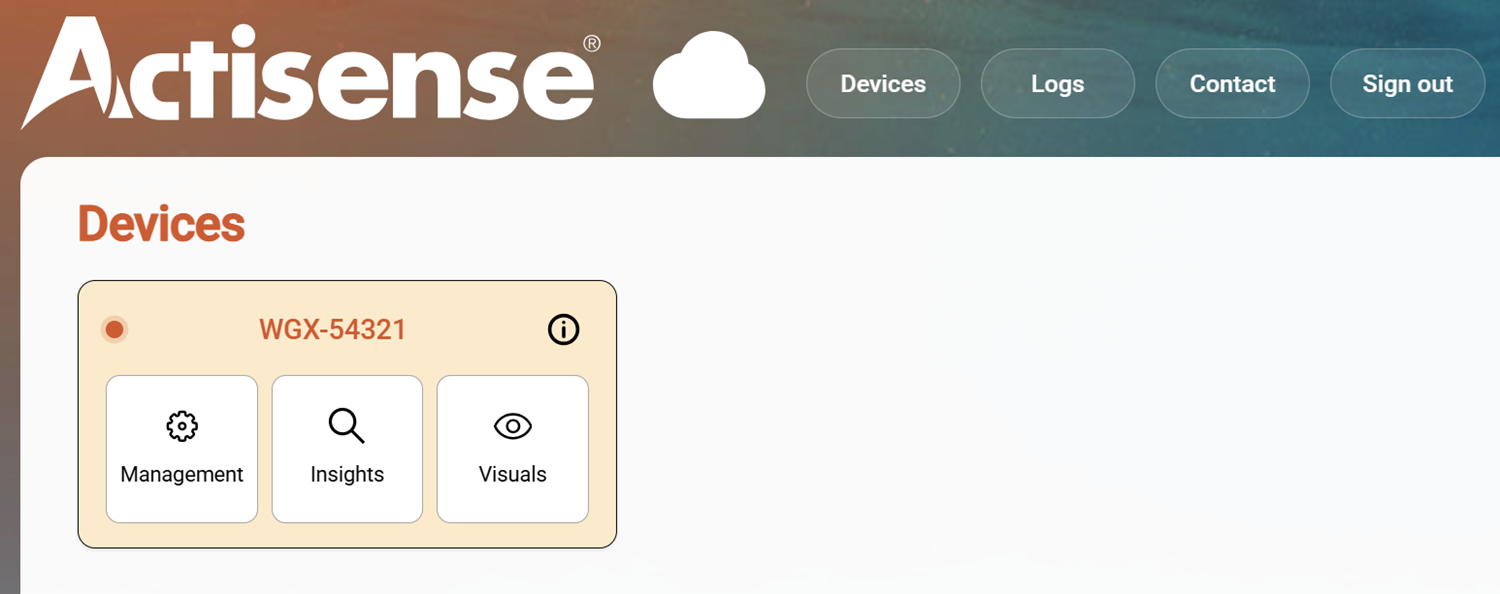
We recently announced the beta release of our new ActisenseCloud platform, designed to make it simple to remotely diagnose a vessel’s onboard network as well as analyse previous journeys for efficiency optimisation. This article is designed to help technicians and installers understand how to specifically gain access to your customer’s vessels, with their express permission. Let’s dive in… First, to access the device administration, you (assisting your customer, or them independently) will need to visit the ActisenseCloud webapp console.
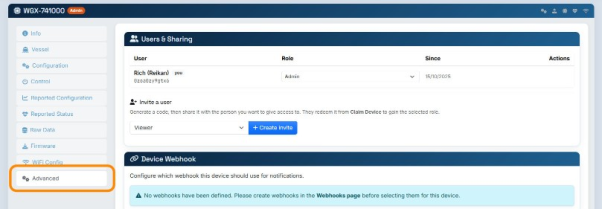
Step 1: On the Device Info page, choose the Advanced tab:
Step 2: To invite a new user to this device, choose their role and click Create Invite:
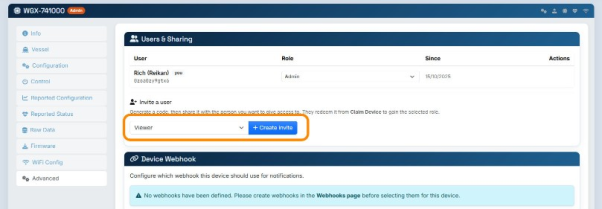
NOTE: A “Viewer” role can see information but not change anything on the device. “Admin” allows everything (this is the default role given to the first user who claims the device). The other roles allow more features than Viewer but fewer than Admin. We recommend “Installer” in this instance…
Step 3: An Invite Code will be generated:
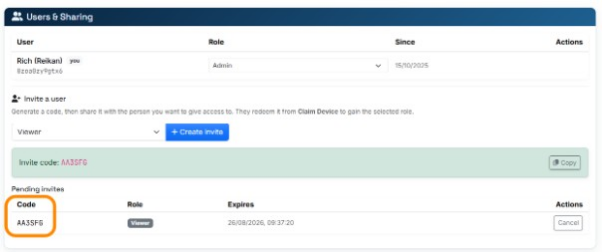
The code will last for 1 week, and can be cancelled with the Cancel button.
Give this code to the user you wish to invite.
Step 4: As the installer, login and go to the “Claim Device” menu:
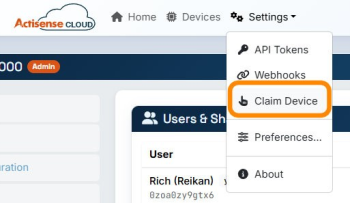
Step 5: Enter the code into the Invite Code box at the bottom (NOT the claim code box – it will be rejected):
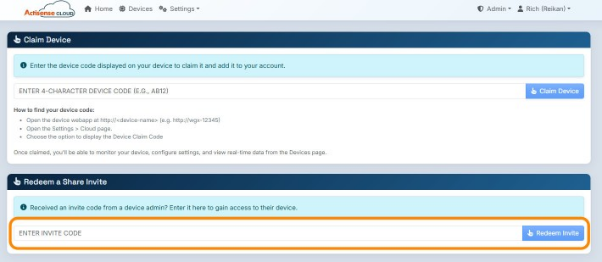
Once you have redeemed the invitation code, you will be able to find the device on your ActisenseCloud device page:
As ever, you can get in touch with our Support Team with any technical questions.
 A Beginners Guide to ActisenseCloud
  Powerful NMEA 2000 data analysis made simple by ActisenseCloud