





Configuring Engine Hours on your EMU-1
The Actisense Toolkit allows the setting of engine hours as detailed in the instructions below.
Your EMU-1 will need to be using firmware v1.060 or above to support engine hour modification.
1: Open Toolkit
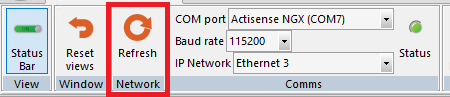
2: Once you have connected with your network via your NGT-1 at the correct baud rate ( Normally
115200), your EMU-1 should be visible within the “Serial/CAN Device List” Tab on your screen.
Press “Refresh” network from the Ribbon bar at the top if it is not visible.

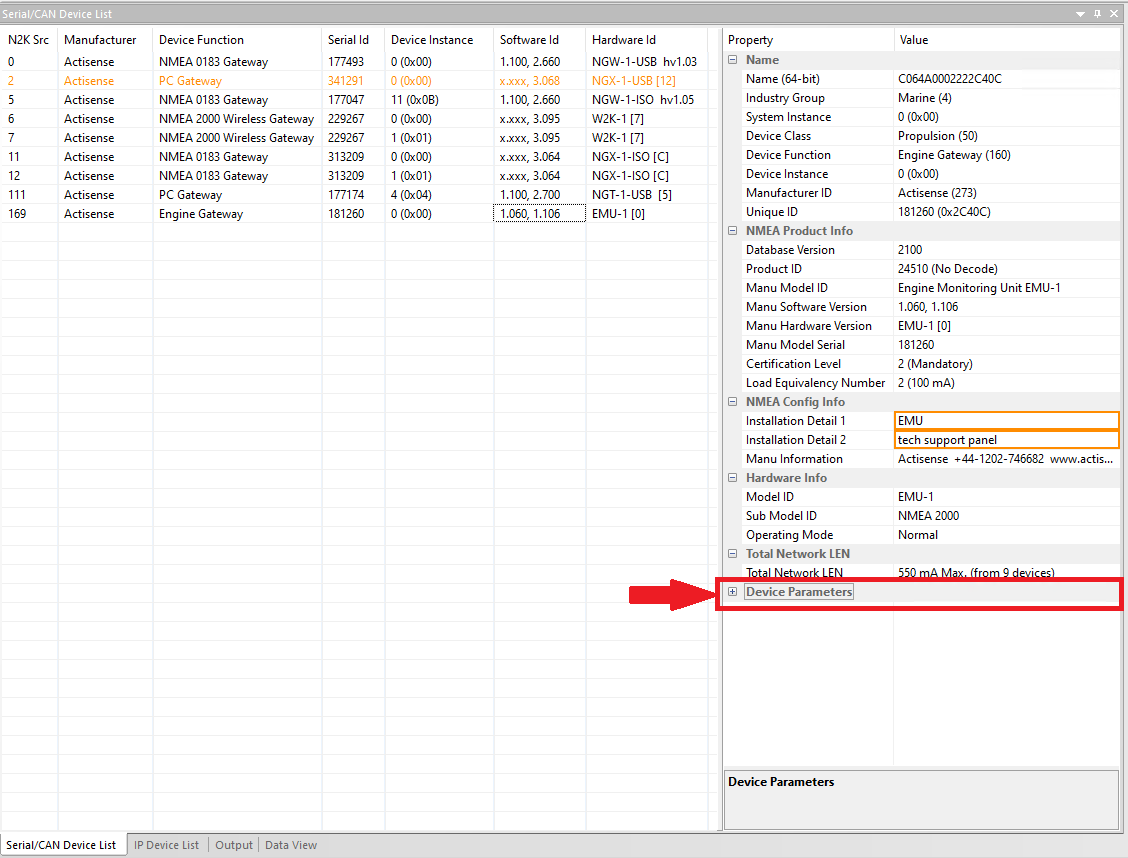
3: Highlight your EMU-1 so that it becomes the “current” device of interest.
This will bring up the “Properties” box for the EMU-1 as shown below.
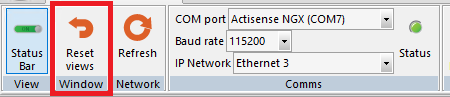
If the properties box does not show immediately, please press the “Reset Views” button as shown below.
4: The “Properties” box shows all the networking information relevant to your EMU-1.
Information such as
• Manufacturer ID
• Serial Number
• Model ID
• Instance number etc
At the bottom of the list is a box labelled
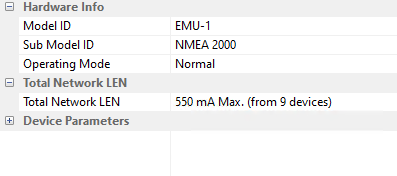
• + Device Parameters
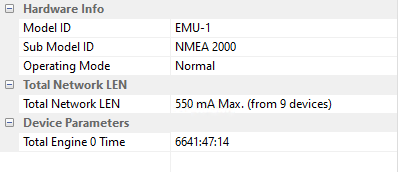
Clicking on the “+” icon will open the information on the current engine hours set for your engine(s) as
shown below.
• Before Clicking “+”
• After Clicking “+” (your engine hours will likely be different)
5: Press “Load from Device” to load the current configuration settings from your EMU-1.

This will bring up a screen as shown below, which details what settings are currently stored with your
EMU-1
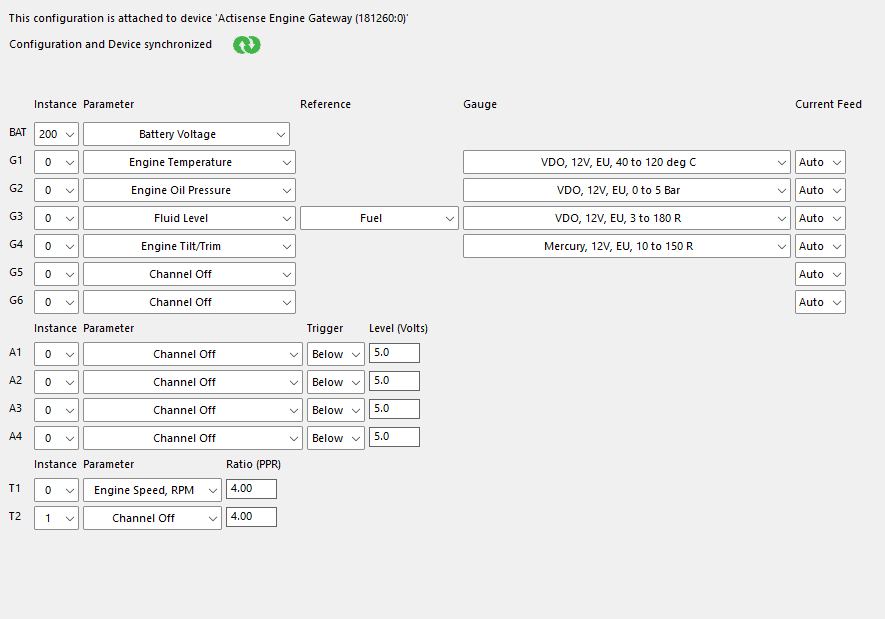
In order to be able to set your “Engine hours” the T1 and/or T2 tacho parameters shown at the bottom of
this window need to be set to:
• Engine Speed, RPM (as they are currently shown)
If they currently say
• Channel Off
You will need to change this using the drop-down box and set it to “Engine Speed, RPM” and then press
“Send to Device” This will turn the “Tacho channels” ON.

Please note: You can set your “Engine Hours” even if there is no signal being fed to the channel. The
important part to note is that the channel must be set to “Engine Speed, RPM” rather than “Channel Off”.
6: Changing the hours is quite simple from here. Highlight the current value, whatever that may be, and
overwrite your new value as required.
You must enter the value in the format: Hrs:Minutes:Secsincluding the “:”
For example:
• 100:00:00
• 250:30:00
• 450:10:00 etc
Once you have set your engine hours to the desired values, press send to device to store them on the
EMU-1 properly.
Occasionally, you may need to press “Refresh” network if some of the fields don’t show exactly as
expected.